


This Quick Byte details the setup to configure Visual Studio Code (VSC) to program the Propeller 2 (the P2, or P2X8C4M64P) on Windows. The process for Mac, RaspPi, and Linux operating systems is similar and not detailed in this post – but the differences are shown on Stephen Moraco’s “Iron Sheep” GitHub (link at bottom).
VSC with the Spin2 extension provides syntax highlighting and compiling/downloading to a Propeller via add-in compilers with the familiarity of a very popular programming environment.
The software required includes Microsoft VSC, the Spin2 extension (Stephen Moraco’s Iron Sheep Software), and the PNut software (Windows only; Parallax Inc.) or the FlexProp software (Mac, Linux and RaspPi; Total Spectrum Software). All software is open source, freely available, and easily configured to compile and download to the P2. Additionally, an ANSI-compliant terminal program of your choice (Parallax Serial Terminal, TerraTerm, CoolTerm, etc) may also be used for serial debug. You will also have access to other VSC Marketplace extensions [like Error Lens, one of my favorites].
These instructions are for configuring the P2 with VSC under Windows. You can obtain more specific instructions for all supported operating systems from Stephen Moraco’s “Iron Sheep” GitHub.
Note: the bottom of this document includes a summary of links to important resources.
Thank You to the Contributors
The P2 open source community is motivated by user feedback from the Parallax forums, the Propeller 2 Live Forums and messages of appreciation. If you benefit from this Quick Byte, we encourage you to join Parallax and also recognize their contributions through their Patreon accounts:
Considerations Between PNut (Parallax) and FlexSpin (Total Spectrum Software) Compilers
PNut is the official Parallax compiler and was written in X86 assembly for use in the Propeller Tool for Windows. FlexSpin is the compiler created by Eric Smith of Total Spectrum Software, written in C. While efforts are made to ensure Parallax-published Quick Byte examples run in both compilers and that FlexSpin remains largely compatible, there are likely to be some small differences. PNut includes the graphical debug tools (`debug) and FlexSpin does not. Both compilers support Spin2 and PASM languages, but FlexSpin supports the mixing of objects with BASIC and C, along with some Propeller 1 (P1, or P8X32A) Spin 1 code.
Details about FlexSpin are available on the Parallax forums FlexProp thread, and details about PNut are on the PNut thread. The PNut Tool is just a test-area for compiler changes before the compiler makes its way into the Propeller Tool for Windows, the official Parallax tool.
If you encounter compilation issues with FlexSpin, you can report them on the FlexProp thread or to the Total Spectrum Software GitHub.
Step 0: Download and Install VSC + Unzip PNut or FlexProp
–AND–
–or–
NOTE: Neither PNut nor FlexProp have installers, so extracting into a proper folder is needed. Creating a “Programs” folder is a suggestion that may avoid user permission issues associated with the “Program Files” folder.
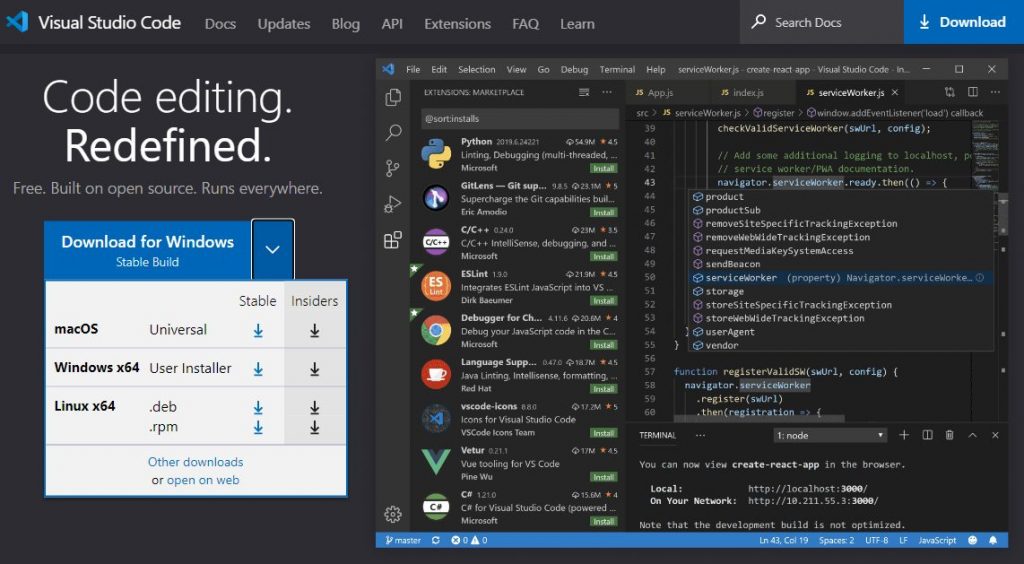

Step 1: Launch VSC, Install the Spin2 Extension
Step 2: Setup Tasks
Visual Studio Code uses a JSON format file (tasks.json) to add compile and download functionality for the Propeller 2. To update your tasks.json file:
{
  // See https://go.microsoft.com/fwlink/?LinkId=733558
  // for the documentation about the tasks.json format
  "version": "2.0.0",
  "tasks": [
    {
      "label": "compileP2",
      "type": "shell",
      "osx": {
        "command": "/Applications/flexprop/bin/flexspin.mac"
      },
      "windows": {
        "command": "flexspin.exe"
      },
      "linux": {
        "command": "/opt/flexprop/bin/flexspin"
      },
      "args": ["-2", "-Wabs-paths", "-Wmax-errors=99", "${fileBasename}"],
      "problemMatcher": {
        "owner": "Spin2",
        "fileLocation": ["autoDetect", "${workspaceFolder}"],
        "pattern": {
          "regexp": "^(.*):(\\d+):\\s+(warning|error):\\s+(.*)$",
          "file": 1,
          "line": 2,
          "severity": 3,
          "message": 4
        }
      },
      "presentation": {
        "panel": "dedicated",
        "focus": false,
        "showReuseMessage": false,
        "clear": true
      },
      "group": {
        "kind": "build",
        "isDefault": true
      }
    },
    {
      "label": "compileTopP2",
      "type": "shell",
      "osx": {
        "command": "/Applications/flexprop/bin/flexspin.mac"
      },
      "windows": {
        "command": "flexspin.exe"
      },
      "linux": {
        "command": "/opt/flexprop/bin/flexspin"
      },
      "args": ["-2", "-Wabs-paths", "-Wmax-errors=99", "${config:topLevel}.spin2"],
      "problemMatcher": {
        "owner": "Spin2",
        "fileLocation": ["autoDetect", "${workspaceFolder}"],
        "pattern": {
          "regexp": "^(.*):(\\d+):\\s+(warning|error):\\s+(.*)$",
          "file": 1,
          "line": 2,
          "severity": 3,
          "message": 4
        }
      },
      "presentation": {
        "panel": "dedicated",
        "focus": false,
        "showReuseMessage": false,
        "clear": true
      },
      "group": {
        "kind": "build",
        "isDefault": true
      }
    },
    {
      "label": "downloadP2",
      "type": "shell",
      "osx": {
        "command": "/Applications/flexprop/bin/loadp2.mac",
        "args": ["-b230400", "${config:topLevel}.binary", "-t"]
      },
      "windows": {
        "command": "loadp2.exe",
        "args": ["-b230400", "${config:topLevel}.binary", "-t"]
      },
      "linux": {
        "command": "/opt/flexprop/bin/loadp2",
        "args": ["-b230400", "${config:topLevel}.binary", "-t", "-p/dev/ttyUSB0"]
      },
      "problemMatcher": [],
      "presentation": {
        "panel": "dedicated",
        "focus": false,
        "showReuseMessage": false,
        "clear": true
      },
      "group": {
        "kind": "test",
        "isDefault": true
      },
      "dependsOn": ["compileTopP2"]
    },
    {
      "label": "flashP2",
      "type": "shell",
      "osx": {
        "command": "/Applications/flexprop/bin/loadp2.mac",
        "args": ["-b230400", "@0=/Applications/flexprop/board/P2ES_flashloader.bin,@8000+${config:topLevel}.binary", "-t", "-k"]
      },
      "windows": {
        "command": "loadp2.exe",
        "args": ["-b230400", "@0=${env:FlexPropPath}/board/P2ES_flashloader.bin,@8000+${config:topLevel}.binary", "-t", "-k"]
      },
      "linux": {
        "command": "/opt/flexprop/bin/loadp2",
        "args": ["-b230400", "@0=/opt/flexprop/board/P2ES_flashloader.bin,@8000+${config:topLevel}.binary", "-t", "-p/dev/ttyUSB0"]
      },
      "problemMatcher": [],
      "presentation": {
        "panel": "dedicated",
        "focus": false,
        "showReuseMessage": false,
        "clear": true
      },
      "group": {
        "kind": "test",
        "isDefault": true
      },
      "dependsOn": ["compileTopP2"]
    },
    {
      "label": "compilePNut2",
      "type": "shell",
      "command": "echo",
      "args": ["Avail on  windows only!"],
      "windows": {
        "command": "pnut_shell.bat",
        "args": ["${fileBasename}", "-c"]
      },
      "problemMatcher": {
        "owner": "Spin2",
        "fileLocation": ["autoDetect", "${workspaceFolder}"],
        "pattern": {
          "regexp": "^(.*):(\\d+):\\s*(warning|error):\\s*(.*)$",
          "file": 1,
          "line": 2,
          "severity": 3,
          "message": 4
        }
      },
      "presentation": {
        "panel": "dedicated",
        "focus": false,
        "showReuseMessage": false,
        "clear": true
      },
      "group": {
        "kind": "build",
        "isDefault": true
      }
    },
    {
      "label": "compileTopPNut2",
      "type": "shell",
      "command": "echo",
      "args": ["Avail on  windows only!"],
      "windows": {
        "command": "pnut_shell.bat",
        "args": ["${config:topLevel}.spin2", "-c"]
      },
      "problemMatcher": {
        "owner": "Spin2",
        "fileLocation": ["autoDetect", "${workspaceFolder}"],
        "pattern": {
          "regexp": "^(.*):(\\d+):\\s+(warning|error):\\s+(.*)$",
          "file": 1,
          "line": 2,
          "severity": 3,
          "message": 4
        }
      },
      "presentation": {
        "panel": "dedicated",
        "focus": false,
        "showReuseMessage": false,
        "clear": true
      },
      "group": {
        "kind": "build",
        "isDefault": true
      }
    },
    {
      "label": "downloadPNut2",
      "type": "shell",
      "command": "echo",
      "args": ["Avail on  windows only!"],
      "windows": {
        "command": "pnut_shell.bat",
        "args": ["${config:topLevel}.spin2", "-r"]
      },
      "problemMatcher": {
        "owner": "Spin2",
        "fileLocation": ["autoDetect", "${workspaceFolder}"],
        "pattern": {
          "regexp": "^(.*):(\\d+):\\s+(warning|error):\\s+(.*)$",
          "file": 1,
          "line": 2,
          "severity": 3,
          "message": 4
        }
      },
      "presentation": {
        "panel": "dedicated",
        "focus": false,
        "showReuseMessage": false,
        "clear": true
      },
      "group": {
        "kind": "test",
        "isDefault": true
      }
    },
    {
      "label": "downloadDebugPNut2",
      "type": "shell",
      "command": "echo",
      "args": ["Avail on  windows only!"],
      "windows": {
        "command": "pnut_shell.bat",
        "args": ["${config:topLevel}.spin2", "-rd"]
      },
      "problemMatcher": {
        "owner": "Spin2",
        "fileLocation": ["autoDetect", "${workspaceFolder}"],
        "pattern": {
          "regexp": "^(.*):(\\d+):\\s+(warning|error):\\s+(.*)$",
          "file": 1,
          "line": 2,
          "severity": 3,
          "message": 4
        }
      },
      "presentation": {
        "panel": "dedicated",
        "focus": false,
        "showReuseMessage": false,
        "clear": true
      },
      "group": {
        "kind": "test",
        "isDefault": true
      }
    },
    {
      "label": "flashPNut2",
      "type": "shell",
      "command": "echo",
      "args": ["Avail on  windows only!"],
      "windows": {
        "command": "pnut_shell.bat",
        "args": ["${config:topLevel}.spin2", "-f"]
      },
      "problemMatcher": {
        "owner": "Spin2",
        "fileLocation": ["autoDetect", "${workspaceFolder}"],
        "pattern": {
          "regexp": "^(.*):(\\d+):\\s+(warning|error):\\s+(.*)$",
          "file": 1,
          "line": 2,
          "severity": 3,
          "message": 4
        }
      },
      "presentation": {
        "panel": "dedicated",
        "focus": false,
        "showReuseMessage": false,
        "clear": true
      },
      "group": {
        "kind": "test",
        "isDefault": true
      }
    }
  ]
}
Step 3: Setup Path for your P2 Compiler of Choice in Windows
For VSC Tasks to activate the tools properly, you need to set your Windows “Path” Environment Variable to point to them.
Step 4: Key Bindings
To compile and download to the P2, you’ll need to update VSC’s key bindings JSON file to provide the following functionality:
To update your keybindings.json file:
// Place your key bindings in this file to override the defaultsauto[]
// PNut compiler key bindings
[
  {
    "key": "ctrl+shift+d",
    "command": "workbench.action.tasks.runTask",
    "args": "downloadPNut2"
  },
  {
    "key": "ctrl+shift+f",
    "command": "workbench.action.tasks.runTask",
    "args": "flashPNut2"
  },
  {
    "key": "F8",
    "command": "workbench.action.tasks.build",
    "args": "compilePNut2"
  },
  {
    "key": "F10",
    "command": "workbench.action.tasks.runTask",
    "args": "downloadPNut2"
  },
  {
    "key": "ctrl+F10",
    "command": "workbench.action.tasks.runTask",
    "args": "downloadDebugPNut2"
  },
  {
    "key": "F11",
    "command": "workbench.action.tasks.runTask",
    "args": "flashPNut2"
  }
]
// Place your key bindings in this file to override the defaultsauto[]
// FlexProp compiler key bindings
[
{
"key": "ctrl+shift+d",
"command": "workbench.action.tasks.runTask",
"args": "downloadP2"
},
{
"key": "ctrl+shift+f",
"command": "workbench.action.tasks.runTask",
"args": "flashP2"
},
{
"key": "F8",
"command": "workbench.action.tasks.build",
"args": "compileP2"
},
{
"key": "F10",
"command": "workbench.action.tasks.runTask",
"args": "downloadP2"
},
{
"key": "F11",
"command": "workbench.action.tasks.runTask",
"args": "flashP2"
}
]Step 5: Configure settings.json to Identify your Top P2 File (per project)
The compiler needs to know the name of your Spin2 Top File for your project (for multi-object projects).
For each new project you create:
{
    "topLevel": "your_top_file",
 }
Write Code, Compile and Download to the P2!
Using the keymappings identified above, F8 will compile (only), and F10 or F11 compile and download to RAM or Flash, respectively. Close the terminal window after downloads are finished.
Remember: For Each New Project, Create a .vscode/settings.json Subfolder and File
Every time you begin a new P2 project with VSC, repeat the last step above so VSC knows what source file to start compiling your multi-object project from.


